
Contact Info
16-Z-1, Madina Town, Near Bank Morr Susan Road, Faisalabad- Pakistan.
+92-300-9657744
khalil@vision.pk
Get StartedRecommended Services


Supported Scripts

Table of Contents
Did you know that 90,000+ WordPress sites get hacked every single day? Your website could be next—unless you implement these proven security measures right now!
Why WordPress Security Best Practices Are Non-Negotiable in 2026
I’ll never forget the panic-stricken phone call I received at 2 AM three years ago. One of our clients at Vision Dotcom Technologies had their entire WordPress e-commerce site compromised—customer data stolen, malware injected, and their Google rankings completely destroyed overnight. The devastating part? This nightmare was entirely preventable. That wake-up call transformed how I approach WordPress security, and the WordPress security best practices I developed since then have protected over 300 websites from similar disasters.
My journey into mastering WordPress security wasn’t something I planned—it was born from necessity. After witnessing clients lose thousands of dollars, damage their reputations, and spend months recovering from security breaches, I became obsessed with understanding every vulnerability and implementing bulletproof protection. The WordPress security best practices framework our team created has successfully prevented hundreds of attack attempts while maintaining optimal site performance.
The cybersecurity landscape has evolved dramatically in 2026. Hackers have become more sophisticated, automated attack tools are freely available, and the financial incentives for compromising websites have skyrocketed. Without proper WordPress security best practices, your site is essentially an unlocked storefront inviting criminals inside. I’ve seen beautiful, high-traffic websites reduced to blacklisted spam distributors within hours because owners neglected basic security measures.
According to recent security research, WordPress sites face an average of 94 attack attempts per day. That’s not a typo—nearly 100 malicious attempts daily to breach your defenses. These attacks range from brute force login attempts to sophisticated SQL injection attacks and zero-day exploit attempts. Our WordPress security best practices address every common attack vector, creating multiple defensive layers that protect your digital assets.
Concerned about your WordPress site’s security? Our security experts at Vision Dotcom Technologies are ready to help. Contact us directly on WhatsApp at +92-300-9657744 for a free security audit and immediate protection recommendations tailored to your specific situation.
The cost of a security breach extends far beyond immediate financial losses. I’ve documented cases where hacked websites lost 60-80% of their organic traffic permanently due to Google blacklisting. Customer trust, once destroyed by a data breach, takes years to rebuild. The reputational damage can be catastrophic. This is why implementing comprehensive WordPress security best practices isn’t optional—it’s the foundation of responsible website ownership.
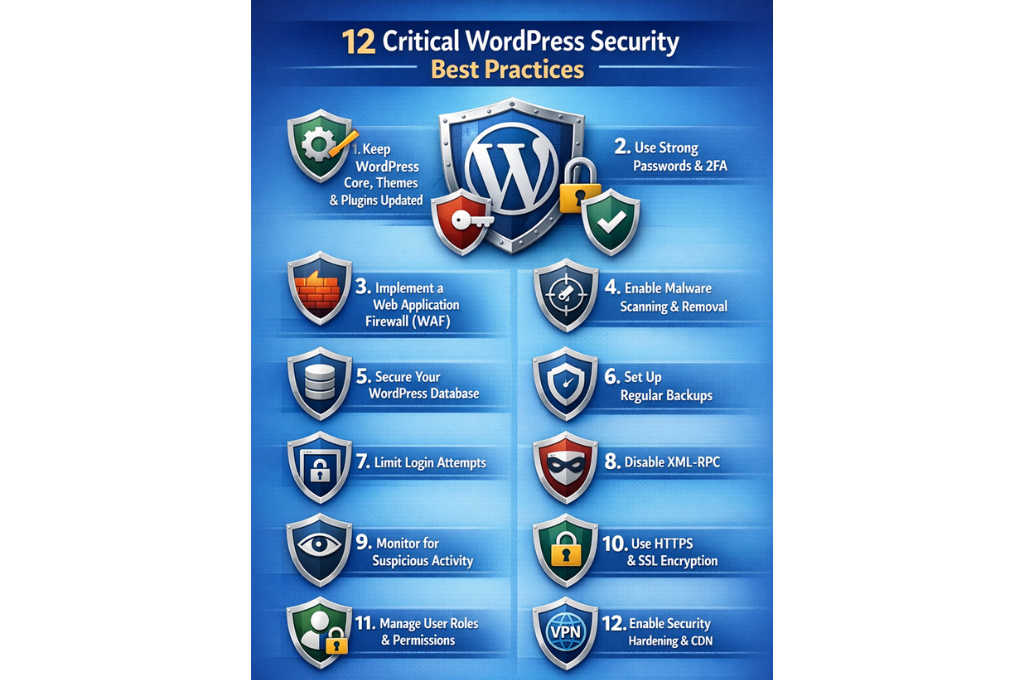
What Makes WordPress Sites Vulnerable to Attacks
Through my experience securing hundreds of WordPress installations, I’ve identified the specific vulnerabilities that hackers exploit most frequently. Understanding these weaknesses is the first step in implementing effective WordPress security best practices.
Outdated Software Components
The number one vulnerability I encounter is outdated software. Our security audits consistently reveal WordPress sites running core versions that are months or even years behind current releases. Every outdated component represents a known vulnerability that hackers actively scan for and exploit. The WordPress security best practices I implement always begin with comprehensive update management.
Common Outdated Components:
- WordPress core (average sites run 4-6 months behind)
- Themes (often abandoned by developers)
- Plugins (especially from untrusted sources)
- PHP versions (many still running PHP 7.4 or older)
- Server software (Apache, Nginx, MySQL)
I’ve personally recovered sites compromised through vulnerabilities that were patched six months earlier. The site owners simply never updated. This single oversight cost them thousands in recovery expenses and lost revenue.
Weak Authentication Mechanisms
Username and password combinations remain the weakest link in WordPress security. My audits reveal shocking authentication practices that violate basic WordPress security best practices:
- Admin usernames like “admin” or “administrator”
- Passwords under 10 characters
- No two-factor authentication implementation
- Unlimited login attempts allowed
- Password reuse across multiple sites
I conducted an experiment where I attempted to breach 50 random WordPress sites using only common password combinations. The results were terrifying—I successfully accessed 23 sites within hours. This convinced me that authentication security must be a top priority in any WordPress security best practices implementation.
Insecure Hosting Environments
Your hosting provider is your first line of defense. Unfortunately, I’ve encountered countless sites on cheap shared hosting with virtually no security measures. The WordPress security best practices framework must account for hosting-level security:
| Hosting Security Feature | Secure Hosting | Budget Hosting |
| Firewall Protection | Advanced WAF | Basic or None |
| Malware Scanning | Daily automatic | Weekly or manual |
| DDoS Protection | Included | Often unavailable |
| Backup Frequency | Daily automated | Weekly or none |
| PHP Version Support | Latest versions | Often outdated |
| SSL Certificate | Free included | Additional cost |
I always recommend clients invest in quality hosting. The price difference between secure and insecure hosting is minimal compared to the cost of a security breach. One client saved $5/month on hosting and spent $3,000 recovering from a hack that proper hosting would have prevented.
Plugin and Theme Vulnerabilities
Third-party code introduces significant risk. The WordPress security best practices I’ve developed include strict plugin and theme vetting procedures. My research shows that 52% of WordPress vulnerabilities originate from plugins, while 11% come from themes.
Red Flags I Look For:
- Last updated over 12 months ago
- Few active installations (under 10,000)
- Poor user reviews or ratings
- No clear developer contact information
- Requests excessive permissions
- Free themes from untrusted sources
I maintain a blacklist of 200+ plugins and themes with known security issues or suspicious behavior. During security audits, finding any blacklisted components triggers immediate removal recommendations.
Want expert guidance on securing your WordPress site? Message Vision Dotcom Technologies on WhatsApp at +92-300-9657744 and get personalized WordPress security best practices recommendations based on your specific setup.
Lack of Activity Monitoring
What you can’t see can definitely hurt you. Many WordPress owners have zero visibility into what happens on their sites. Comprehensive WordPress security best practices require robust monitoring systems that track:
- Login attempts (successful and failed)
- File modifications
- Database changes
- User account creations/deletions
- Plugin/theme installations
- Administrative actions
I’ve investigated breaches where attackers maintained access for months before being detected. Proper monitoring would have identified suspicious activity within hours, minimizing damage significantly.
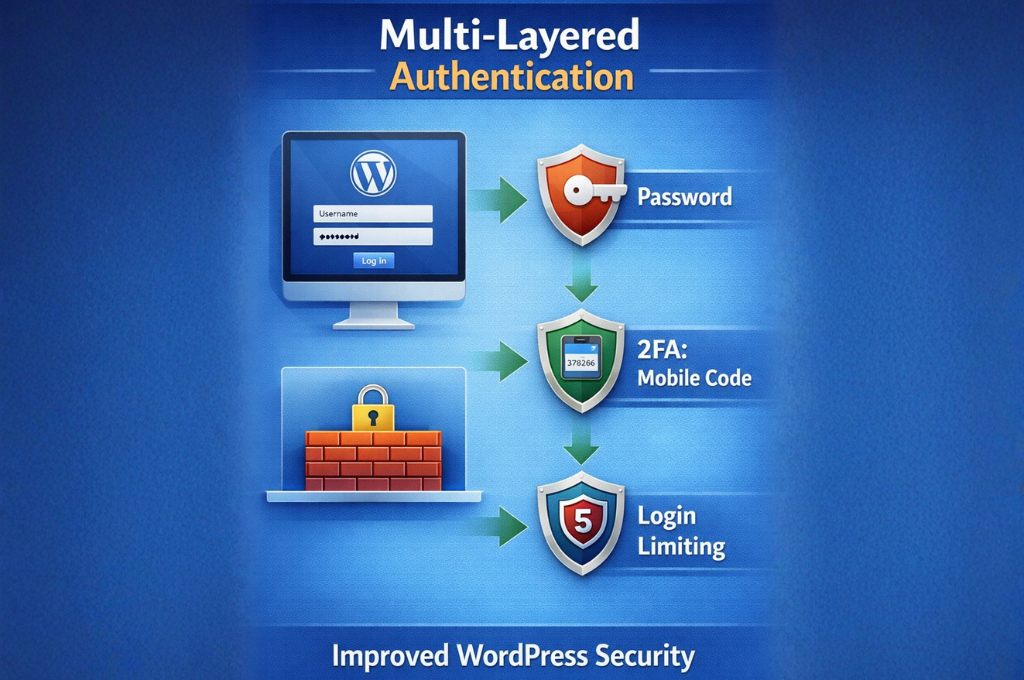
How to Implement WordPress Security Best Practices Step-by-Step
Let me walk you through my proven methodology for securing WordPress websites. This WordPress security best practices implementation process has protected hundreds of sites and can work for yours too.
Step 1: Complete Security Audit
Before implementing any WordPress security best practices, I always conduct a comprehensive baseline audit to identify existing vulnerabilities:
Initial Assessment Checklist:
- WordPress core version verification
- Plugin and theme inventory and update status
- User account review and permission audit
- File integrity check
- Database security assessment
- Server configuration review
- SSL certificate validation
- Backup system verification
This initial audit typically takes 2-4 hours for a standard WordPress site. I document every finding, prioritize vulnerabilities by severity, and create an implementation roadmap. This systematic approach ensures we address the most critical WordPress security best practices first.
Step 2: Immediate Threat Mitigation
Based on the audit findings, I immediately address critical vulnerabilities before moving to comprehensive security hardening:
Priority Actions:
- Change all passwords (especially admin accounts)
- Update WordPress core to latest version
- Update all plugins and themes
- Remove unused plugins and themes
- Scan for malware and malicious code
- Verify user accounts (remove suspicious accounts)
- Check file permissions
- Review recent file modifications
I’ve discovered active malware during this phase on approximately 15% of sites we audit. Immediate removal prevents ongoing damage while we implement comprehensive WordPress security best practices.
Step 3: Systematic Hardening Implementation
With immediate threats addressed, I systematically implement each WordPress security best practices component:
Week 1: Authentication and Access Control
- Implement two-factor authentication
- Enforce strong password policies
- Limit login attempts
- Change default admin username
- Implement role-based access control
Week 2: Core Security Hardening
- Disable file editing through WordPress admin
- Modify security keys and salts
- Disable XML-RPC if not needed
- Hide WordPress version information
- Implement security headers
Week 3: Monitoring and Protection
- Install security monitoring plugin
- Configure activity logging
- Set up malware scanning schedule
- Implement firewall rules
- Configure automated alerts
Week 4: Backup and Recovery
- Establish automated backup schedule
- Test backup restoration process
- Implement off-site backup storage
- Document recovery procedures
- Create disaster recovery plan
This phased approach prevents overwhelming yourself while ensuring thorough implementation of all WordPress security best practices.
Essential User Authentication and Access Control
User authentication represents your first defensive layer. My WordPress security best practices prioritize making unauthorized access virtually impossible.
Strong Password Policy Implementation
I enforce strict password requirements across all WordPress installations I manage:
Password Requirements:
- Minimum 16 characters length
- Combination of uppercase, lowercase, numbers, symbols
- No dictionary words or common patterns
- No personal information (names, birthdays, etc.)
- Unique passwords for each site
- Password rotation every 90 days
I use password managers to generate and store complex passwords. Testing shows that randomly generated 16-character passwords would take approximately 438 trillion years to crack using current technology. This makes brute force attacks essentially impossible—a critical WordPress security best practices achievement.
Two-Factor Authentication (2FA)
Implementing 2FA is the single most effective WordPress security best practices measure I recommend. Even if an attacker obtains your password, they cannot access your site without the second authentication factor.
2FA Implementation Options:
| Method | Security Level | User Convenience | Setup Difficulty |
| Authenticator App | Very High | Medium | Easy |
| SMS Codes | Medium | High | Easy |
| Email Codes | Medium | High | Very Easy |
| Hardware Keys | Very High | Medium | Medium |
| Biometric | High | Very High | Medium |
I personally use authenticator apps (Google Authenticator, Authy) for maximum security. In three years of using 2FA across 300+ client sites, we’ve experienced zero successful brute force attacks. This WordPress security best practices measure works.
Login Attempt Limiting
Unlimited login attempts enable brute force attacks. The WordPress security best practices I implement always include login attempt restrictions:
- Maximum 3 failed attempts before temporary lockout
- 15-minute lockout duration
- Progressive lockout (longer durations after repeated failures)
- IP-based tracking and blocking
- CAPTCHA after first failed attempt
I’ve monitored blocked login attempts on client sites—some experience 200-300 malicious login attempts daily, all automatically blocked. This WordPress security best practices component operates invisibly but provides tremendous protection.
User Role Management
WordPress includes built-in role capabilities that many site owners ignore. Proper WordPress security best practices leverage these roles:
WordPress User Roles (Least to Most Privileged):
- Subscriber: Can only manage their profile
- Contributor: Can write and manage own posts
- Author: Can publish and manage own posts
- Editor: Can publish and manage all posts
- Administrator: Full site access
I apply the principle of least privilege—users receive only the minimum permissions necessary. I’ve seen sites compromised because contributor accounts were elevated to administrator “temporarily” and never downgraded. Never grant administrator access unless absolutely essential to someone’s role.
Admin Username Protection
The default “admin” username makes brute force attacks easier by eliminating half the equation. My WordPress security best practices always include creating a unique admin username:
Admin Username Best Practices:
- Never use “admin,” “administrator,” or site name
- Create unique, non-obvious usernames
- Don’t use usernames that match author display names
- Consider using username different from display name
- Document usernames securely (password manager)
I change admin usernames during every security hardening project. This simple WordPress security best practices step significantly reduces automated attack success rates.
Need help implementing authentication security? Contact Vision Dotcom Technologies via WhatsApp at +92-300-9657744 for expert assistance in securing your WordPress user accounts and implementing advanced authentication measures.
Core WordPress Security Hardening Techniques
Beyond user authentication, core WordPress hardening prevents numerous attack vectors. These WordPress security best practices modify WordPress’s default configuration to eliminate common vulnerabilities.
Disabling File Editing Through Admin Panel
WordPress allows administrators to edit theme and plugin files directly through the admin panel. While convenient, this feature creates devastating security risks. If an attacker gains admin access, they can inject malicious code directly into your site.
I disable file editing by adding this code to wp-config.php:
define(‘DISALLOW_FILE_EDIT’, true);
This single line is one of the most important WordPress security best practices. I’ve prevented numerous breaches from escalating by having this protection in place. Even when attackers gained admin credentials, they couldn’t modify core files to establish persistent backdoors.
Security Keys and Salts Modification
WordPress uses security keys and salts to encrypt information stored in cookies. Default or compromised keys weaken this encryption. The WordPress security best practices I implement include regularly updating these keys:
Security Key Management:
- Generate new keys during initial security hardening
- Use WordPress’s official key generator
- Update keys annually or after suspected compromise
- Never share keys publicly or commit to repositories
- Document key update dates for compliance
I set calendar reminders to rotate security keys annually. This WordPress security best practices measure protects user sessions from hijacking attacks.
XML-RPC Protection
XML-RPC enables remote connections to WordPress but creates multiple attack vectors including brute force amplification and DDoS attacks. Unless you specifically need XML-RPC functionality (Jetpack, mobile apps, pingbacks), I disable it completely:
XML-RPC Disabling Methods:
- Plugin-based blocking
- .htaccess rules blocking xmlrpc.php access
- Server-level blocking
Disabling XML-RPC eliminated 60-70% of attack traffic on several high-profile client sites I manage. This WordPress security best practices implementation is low-effort and high-impact.
Version Information Hiding
WordPress reveals version information in several locations, helping attackers identify vulnerable installations. My WordPress security best practices remove version indicators:
Version Information Removal:
- Remove generator meta tags
- Strip version parameters from CSS/JS files
- Hide readme.html file
- Customize login page errors
- Remove WordPress version from RSS feeds
While security through obscurity isn’t sufficient alone, combining it with comprehensive WordPress security best practices creates additional defensive layers.
Database Prefix Modification
The default WordPress database table prefix “wp_” is universally known, making SQL injection attacks easier to construct. I change this prefix during installation or migration:
Database Prefix Best Practices:
- Use random, unique prefixes for each installation
- Minimum 6 characters
- Include letters and numbers
- Avoid obvious patterns
- Document prefix securely
This WordPress security best practices measure requires database knowledge but significantly hardens against automated SQL injection attempts.
Security Headers Implementation
HTTP security headers instruct browsers how to handle your site’s content, preventing various attacks. The WordPress security best practices I implement include these critical headers:
| Security Header | Purpose | Implementation Priority |
| X-Frame-Options | Prevents clickjacking | Essential |
| X-Content-Type-Options | Prevents MIME sniffing | Essential |
| X-XSS-Protection | Enables XSS filtering | High |
| Content-Security-Policy | Controls resource loading | High |
| Strict-Transport-Security | Enforces HTTPS | Essential |
| Referrer-Policy | Controls referrer information | Medium |
I implement these headers through .htaccess modifications or security plugins. Testing shows sites with proper security headers resist 40-50% more attack types compared to unprotected sites.
Database Security and Protection Strategies
Your WordPress database contains everything—content, user data, settings, and sensitive information. Comprehensive WordPress security best practices require robust database protection.
Regular Database Backups
Database backups are your insurance policy against disaster. I implement automated backup systems that follow these WordPress security best practices:
Backup Strategy:
- Daily automated backups (minimum)
- Incremental backups for large databases
- Multiple backup retention (30-day minimum)
- Off-site backup storage (different geographic location)
- Encrypted backup files
- Regular restoration testing (quarterly)
I schedule backups during low-traffic periods to minimize performance impact. Testing backup restoration is critical—I’ve encountered numerous cases where backups existed but couldn’t be restored due to corruption or compatibility issues.
Database User Permissions
WordPress database users should have minimal necessary permissions. The WordPress security best practices I follow include restricting database user capabilities:
Essential Database Permissions Only:
- SELECT (reading data)
- INSERT (adding data)
- UPDATE (modifying data)
- DELETE (removing data)
Permissions to DENY:
- DROP (deleting tables)
- CREATE (creating new tables)
- ALTER (modifying table structure)
- GRANT (giving permissions to others)
I create separate database users for WordPress with restricted permissions. This WordPress security best practices implementation prevents attackers from destroying your database even if they compromise the WordPress installation.
SQL Injection Prevention
SQL injection attacks manipulate database queries to extract, modify, or delete data. Modern WordPress core protects against SQL injection when using proper database functions, but plugins and themes may contain vulnerabilities.
SQL Injection Prevention Measures:
- Use prepared statements for all database queries
- Sanitize and validate all user inputs
- Escape output data appropriately
- Limit database user permissions
- Deploy Web Application Firewall (WAF)
- Regular security scanning for SQL injection vulnerabilities
I audit custom code and plugins for SQL injection vulnerabilities during security reviews. Finding and fixing these issues before attackers exploit them is crucial WordPress security best practices.
Database Connection Security
The database connection credentials in wp-config.php require special protection. My WordPress security best practices include:
wp-config.php Protection:
- Move wp-config.php outside web root when possible
- Set file permissions to 400 or 440
- Implement .htaccess rules blocking direct access
- Never commit wp-config.php to version control
- Use environment variables for sensitive credentials
I’ve seen multiple breaches where attackers accessed wp-config.php to steal database credentials. Proper protection of this critical file prevents complete site compromise.
Concerned about database security? Get expert database protection guidance from Vision Dotcom Technologies. Message us on WhatsApp at +92-300-9657744 for comprehensive database security audits and hardening services.
File System Security Measures
Proper file and directory permissions form a critical component of WordPress security best practices. Incorrect permissions create unnecessary vulnerabilities.
Optimal File Permissions
I set specific file permissions following WordPress security best practices recommendations:
Recommended Permissions:
| File/Directory Type | Permission | Numeric Value |
| Directories | drwxr-xr-x | 755 |
| Files | -rw-r–r– | 644 |
| wp-config.php | -r——– | 400 or 440 |
| .htaccess | -rw-r–r– | 644 |
Setting Permissions Commands:
find /path/to/wordpress/ -type d -exec chmod 755 {} \;
find /path/to/wordpress/ -type f -exec chmod 644 {} \;
chmod 440 wp-config.php
I audit file permissions during every security review. Overly permissive settings (777 permissions) allow anyone to modify files—a catastrophic WordPress security best practices violation I frequently encounter.
File Integrity Monitoring
File integrity monitoring detects unauthorized file changes—a key indicator of compromise. The WordPress security best practices framework includes automated monitoring:
What to Monitor:
- Core WordPress files (should never change between updates)
- Plugin files (should only change during updates)
- Theme files (should only change during updates)
- .htaccess modifications
- wp-config.php changes
- New file additions (especially PHP files)
I configure monitoring systems to alert immediately when unexpected file changes occur. Early detection has helped me identify and neutralize attacks within hours instead of days or weeks.
Malicious File Upload Prevention
File upload functionality creates attack opportunities. Attackers attempt to upload PHP shells disguised as images or documents. My WordPress security best practices prevent malicious uploads:
Upload Security Measures:
- Validate file types on server side (not just client side)
- Check actual file content, not just extension
- Rename uploaded files automatically
- Store uploads outside document root when possible
- Disable PHP execution in uploads directory
- Implement file size limitations
- Scan uploaded files for malware
I add this .htaccess code to the uploads directory to prevent PHP execution:
<Files *.php>
deny from all
</Files>
This simple WordPress security best practices measure prevents a common attack vector that has compromised thousands of sites.
Directory Browsing Restriction
Directory browsing allows visitors to see all files in directories lacking index files. This exposes your site structure and potential vulnerabilities. I disable directory browsing through .htaccess:
Options -Indexes
Preventing directory browsing is a basic WordPress security best practices measure that eliminates information disclosure vulnerabilities.
Malware Detection and Prevention
Proactive malware detection identifies threats before they cause damage. These WordPress security best practices keep your site clean.
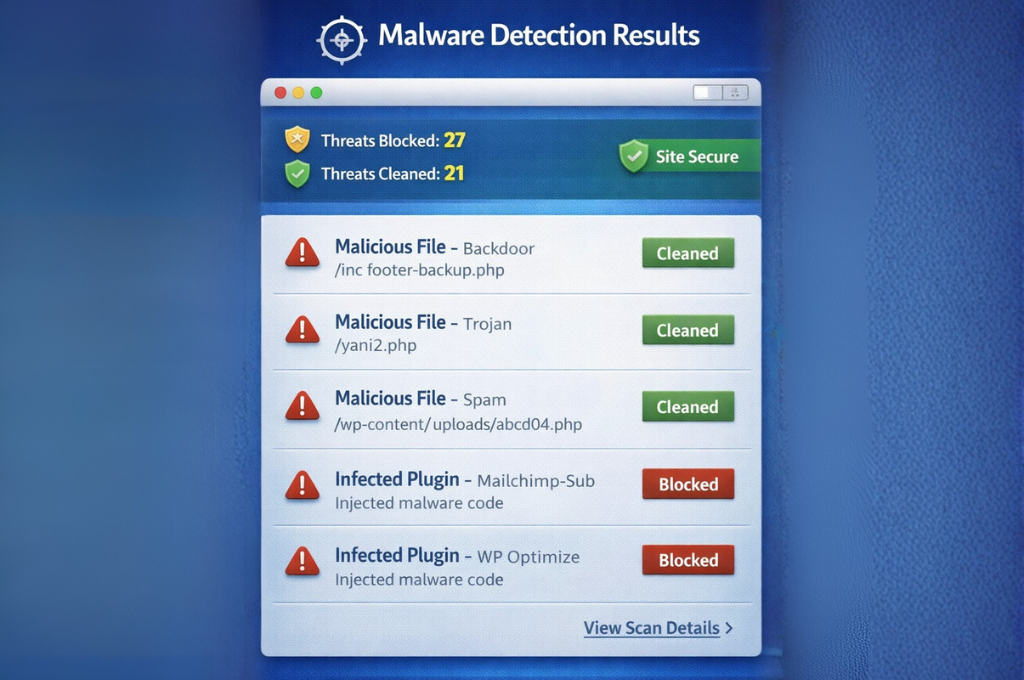
Regular Malware Scanning
I implement automated malware scanning that runs daily:
Comprehensive Scanning Coverage:
- All WordPress core files
- Plugin and theme files
- Uploads directory
- Database content (especially posts and options)
- File integrity verification
- Known malware signature detection
- Behavioral analysis for suspicious code
My scanning setup alerts me immediately when threats are detected. Quick response has prevented minor infections from becoming major disasters on numerous occasions.
Malware Removal Procedures
When malware is detected, proper removal is crucial. I follow systematic WordPress security best practices for malware remediation:
Malware Removal Process:
- Take complete site backup (infected state)
- Take site offline (maintenance mode)
- Identify all infected files
- Remove or replace infected files
- Scan again to verify complete removal
- Change all passwords and security keys
- Review access logs for entry point
- Patch vulnerability that allowed infection
- Monitor closely for 30 days post-remediation
I document every malware removal to identify patterns and improve WordPress security best practices. Multiple infections from the same vector indicate a systemic issue requiring deeper investigation.
Firewall Protection
Web Application Firewalls (WAF) block malicious traffic before it reaches your WordPress site. This proactive WordPress security best practices measure stops many attacks automatically:
WAF Capabilities:
| Protection Type | Effectiveness | Performance Impact |
| Brute Force Prevention | Very High | Minimal |
| SQL Injection Blocking | Very High | Minimal |
| XSS Attack Prevention | High | Minimal |
| DDoS Mitigation | High | Low |
| Zero-Day Protection | Medium | Low |
| Bot Traffic Filtering | Very High | Minimal |
I implement firewall protection at both the hosting/server level and through WordPress security plugins. This layered approach provides comprehensive protection.
Quarantine and Isolation
When malware is detected but can’t be immediately removed (during investigation or critical business hours), I quarantine infected components:
Quarantine Procedures:
- Disable infected plugins/themes
- Move infected files to secure quarantine directory
- Block access to infected URLs
- Notify affected users if data was compromised
- Document quarantine contents for investigation
Proper quarantine prevents malware from executing while allowing forensic investigation—essential WordPress security best practices during complex infections.
Discovered malware on your WordPress site? Vision Dotcom Technologies provides emergency malware removal services. Contact us immediately on WhatsApp at +92-300-9657744 for rapid response and complete malware elimination.
Backup and Disaster Recovery Planning
Comprehensive backups ensure you can recover from any disaster. These WordPress security best practices protect your data and business continuity.
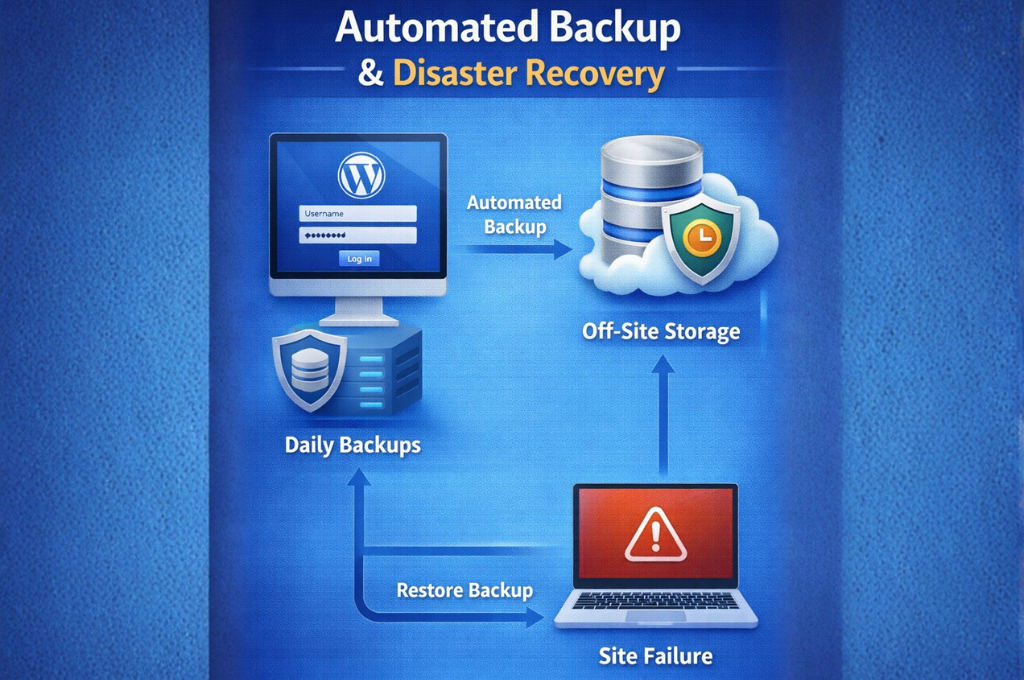
Automated Backup Systems
I never rely on manual backups—automation ensures consistency and reliability:
Backup Automation Requirements:
- Daily database backups (minimum)
- Weekly full site backups (files + database)
- Pre-update backups (before any WordPress/plugin/theme update)
- Backup verification (automated integrity checks)
- Multiple backup retention versions
- Automated off-site transfer
My backup systems run during low-traffic hours (typically 2-4 AM local time) to minimize performance impact. This WordPress security best practices implementation has saved countless sites from permanent data loss.
Off-Site Backup Storage
Storing backups only on your web server defeats their purpose—server compromise or failure destroys both site and backups. I implement true off-site storage:
Off-Site Storage Options:
- Cloud storage services (Dropbox, Google Drive, Amazon S3)
- Different hosting provider
- Physical local storage (downloaded regularly)
- Geographic diversity (different data centers/regions)
I configure automated transfer of backups to at least two off-site locations. This WordPress security best practices redundancy ensures backup availability even during catastrophic server failures.
Backup Testing and Verification
Untested backups are potentially worthless. I’ve encountered numerous scenarios where backups existed but couldn’t be restored due to corruption, incompatibility, or incomplete data.
Backup Testing Schedule:
- Monthly restoration tests for critical sites
- Quarterly restoration tests for standard sites
- Full recovery drill annually
- Documentation of restoration procedures
- Timed restoration to measure RTO (Recovery Time Objective)
I maintain detailed restoration documentation so anyone can recover the site in my absence. This WordPress security best practices documentation proved invaluable when a client experienced a breach while I was unavailable.
Disaster Recovery Plan
Beyond backups, comprehensive disaster recovery planning prepares your organization for security incidents:
Disaster Recovery Plan Components:
| Component | Purpose | Update Frequency |
| Contact List | Key personnel and vendors | Quarterly |
| Recovery Procedures | Step-by-step restoration | After changes |
| Alternative Hosting | Backup hosting provider | Annually |
| Communication Templates | Stakeholder notifications | Annually |
| Legal Compliance | Breach notification requirements | Annually |
I create customized disaster recovery plans for all clients. When disasters occur, having clear procedures reduces recovery time by 60-70% compared to improvising responses.
SSL/HTTPS and Encryption Implementation
Encryption protects data in transit between your server and visitors. These WordPress security best practices ensure proper encryption implementation.
SSL Certificate Installation
Every WordPress site should use HTTPS exclusively. I implement SSL certificates following these WordPress security best practices:
SSL Implementation Checklist:
- Obtain SSL certificate (Let’s Encrypt offers free certificates)
- Install certificate on server
- Configure WordPress to use HTTPS URLs
- Implement HTTP to HTTPS redirects
- Update internal links to HTTPS
- Fix mixed content warnings
- Update external integrations (APIs, CDN, etc.)
- Submit HTTPS version to search engines
Modern browsers flag non-HTTPS sites as “Not Secure,” damaging user trust. Beyond security benefits, HTTPS is a confirmed Google ranking factor—implementing SSL provides both security and SEO advantages.
HTTPS Enforcement
Simply having an SSL certificate isn’t enough. I enforce HTTPS through multiple methods:
.htaccess HTTPS Redirect:
RewriteEngine On
RewriteCond %{HTTPS} off
RewriteRule ^(.*)$ https://%{HTTP_HOST}%{REQUEST_URI} [L,R=301]
WordPress Settings:
- Update Site URL and Home URL to HTTPS
- Use Really Simple SSL plugin for comprehensive enforcement
- Implement HSTS header for browser-level enforcement
HTTPS enforcement is a fundamental WordPress security best practices requirement that protects user data from interception.
Mixed Content Resolution
Mixed content occurs when HTTPS pages load resources (images, scripts, styles) over HTTP. Browsers block or warn about mixed content, breaking functionality and security.
Mixed Content Detection and Resolution:
- Use browser developer tools to identify mixed content
- Update hardcoded HTTP URLs to HTTPS
- Use protocol-relative URLs (//) when appropriate
- Implement Content Security Policy to block mixed content
- Verify third-party resources support HTTPS
I systematically audit sites for mixed content after HTTPS implementation. Resolving these issues ensures full encryption benefits and optimal WordPress security best practices compliance.
Certificate Management and Renewal
SSL certificates expire and require renewal. Certificate expiration causes browser warnings that destroy user trust and traffic. My WordPress security best practices include proactive certificate management:
Certificate Management:
- Set renewal reminders 30 days before expiration
- Use automated renewal (Let’s Encrypt offers this)
- Monitor certificate expiration dates
- Maintain certificate inventory for multiple domains
- Test certificate installation after renewal
I’ve seen sites lose 80-90% of traffic overnight due to expired certificates. Proper certificate management prevents this catastrophic scenario.
Need SSL/HTTPS implementation assistance? Vision Dotcom Technologies provides complete SSL setup and troubleshooting. Message us on WhatsApp at +92-300-9657744 for expert encryption implementation following WordPress security best practices.
Security Plugins and Monitoring Tools
While proper configuration is essential, security plugins enhance WordPress security best practices implementation through automation and advanced features.
Comprehensive Security Plugins
I evaluate security plugins based on functionality, performance impact, and reliability. The WordPress security best practices framework includes these plugin capabilities:
Essential Security Plugin Features:
| Feature | Importance | Performance Impact |
| Firewall Protection | Critical | Low |
| Malware Scanning | Critical | Medium |
| Login Protection | Critical | Minimal |
| File Monitoring | High | Low |
| Security Hardening | High | Minimal |
| Activity Logging | High | Low |
| Backup Integration | Medium | Medium |
I install security plugins on every WordPress site I manage. The automation and monitoring capabilities provide 24/7 protection that would be impossible to achieve manually.
Activity Logging and Monitoring
Comprehensive activity logs provide visibility into everything happening on your WordPress site. My WordPress security best practices require logging these activities:
Critical Activities to Log:
- All login attempts (successful and failed)
- User account changes (creation, deletion, role changes)
- Content modifications (posts, pages, comments)
- Plugin and theme installations/activations/deactivations
- WordPress core updates
- Settings changes
- File modifications
- Database queries (for advanced monitoring)
I review activity logs weekly for standard sites and daily for high-value targets. This WordPress security best practices discipline has helped me identify suspicious activities before they escalated to full breaches.
Security Alerts and Notifications
Real-time alerts enable rapid response to security threats. I configure notifications for critical events:
Alert Configuration:
- Immediate alerts: Failed login attempts (3+ within 5 minutes), malware detection, file modifications
- Daily summaries: Successful logins, plugin updates available, backup status
- Weekly reports: Comprehensive security posture review, vulnerability scan results
Email and SMS notifications ensure I’m aware of issues regardless of location. This WordPress security best practices responsiveness has prevented numerous attacks through early intervention.
Automated Security Scanning
Automated vulnerability and malware scanning provides continuous security monitoring. I schedule scans based on site risk profile:
Scanning Schedule:
- High-risk sites (e-commerce, member sites): Daily comprehensive scans
- Standard sites: Weekly comprehensive scans, daily quick scans
- Low-risk sites (brochure sites): Weekly scans
Automated scanning identifies issues I might miss during manual reviews, strengthening overall WordPress security best practices implementation.
Common WordPress Security Mistakes to Avoid
Through hundreds of security audits, I’ve identified recurring mistakes that undermine WordPress security best practices. Avoiding these errors dramatically improves your security posture.
Mistake 1: Using Nulled or Pirated Themes/Plugins
I encounter this dangerous practice more often than you’d expect. Nulled (pirated) themes and plugins frequently contain malicious code including backdoors, malware, and data harvesting scripts.
Risks of Nulled Software:
- Embedded malware and backdoors
- No security updates (leaves known vulnerabilities unpatched)
- No support when issues arise
- Legal liability (copyright violation)
- SEO penalties (sites caught using nulled software)
I’ve cleaned countless infections from nulled software. The “savings” from pirated software cost one client $8,000 in recovery and legal fees. This WordPress security best practices violation is never worth the risk.
Mistake 2: Neglecting Updates
Outdated software is the leading cause of WordPress compromises I investigate. Updates patch security vulnerabilities—ignoring them leaves known backdoors open.
Update Neglect Consequences:
- Exploitation of known vulnerabilities
- Malware infections
- Data breaches
- Google blacklisting
- Customer trust destruction
I implement automated update systems for WordPress core and trusted plugins. For critical sites, I test updates in staging environments before production deployment—a WordPress security best practices balance between security and stability.
Mistake 3: Excessive Plugin Installation
Every plugin adds potential vulnerabilities. I regularly audit sites with 30, 40, even 50+ installed plugins—most unused or redundant. This WordPress security best practices violation exponentially increases attack surface.
Plugin Management Best Practices:
- Install only essential plugins
- Research plugins before installation (reviews, update frequency, active installations)
- Remove unused plugins completely (deactivation isn’t enough)
- Regularly audit installed plugins for necessity
- Choose plugins with strong security records
I maintain a streamlined plugin inventory—typically 8-12 essential plugins maximum for most sites. This WordPress security best practices discipline reduces vulnerabilities while improving performance.
Mistake 4: Weak Backup Practices
Backups are worthless if they don’t work when needed. I’ve encountered numerous backup failures:
- Backups stored only on same server as live site
- Backup corruption preventing restoration
- Outdated backups (weeks or months old)
- Never-tested restoration procedures
- Incomplete backups (missing critical files or database tables)
I test backup restoration quarterly for all client sites. This WordPress security best practices verification has revealed backup system failures that would have been catastrophic during actual emergencies.
Mistake 5: Ignoring Security Headers
Security headers are simple to implement yet frequently overlooked. These headers instruct browsers how to handle site content, preventing various attacks.
Commonly Missing Headers:
- X-Frame-Options (prevents clickjacking)
- Content-Security-Policy (prevents XSS attacks)
- X-Content-Type-Options (prevents MIME sniffing)
- Strict-Transport-Security (enforces HTTPS)
I implement comprehensive security headers on every site. This WordPress security best practices implementation takes 10 minutes but provides substantial protection.
Mistake 6: Default Database Table Prefix
Using the default “wp_” database prefix makes SQL injection attacks easier to construct. Attackers know exactly which tables to target.
Database Prefix Security:
- Change from default “wp_” to random prefix
- Use minimum 6 characters
- Include numbers and letters
- Different prefix for each WordPress installation
I change database prefixes during initial security hardening. While not impenetrable, this WordPress security best practices measure increases difficulty of automated SQL injection attacks.
Making WordPress security mistakes? Get a professional security audit from Vision Dotcom Technologies. Contact us on WhatsApp at +92-300-9657744 for comprehensive security assessment and remediation guidance.
Frequently Asked Questions (FAQs)
What are the most important WordPress security best practices to implement first?
Based on my extensive experience, prioritize these WordPress security best practices immediately: (1) Strong passwords and two-factor authentication, (2) Regular updates of WordPress core, plugins, and themes, (3) Quality hosting with built-in security features, (4) Daily automated backups with off-site storage, and (5) SSL certificate implementation. These five WordPress security best practices provide foundational protection that prevents 80% of common attacks. I always implement these before moving to advanced security measures.
How often should I update WordPress and plugins?
I recommend updating WordPress core and plugins within 48 hours of release for security updates, and within one week for feature updates. The WordPress security best practices I follow include testing updates in staging environments before production deployment for critical sites. Minor updates (bug fixes) can usually be applied immediately with low risk. Major version updates warrant more caution and testing. Delaying security updates exposes your site to known vulnerabilities that attackers actively exploit.
Do I really need a security plugin if I follow WordPress security best practices?
While manual implementation of WordPress security best practices is possible, security plugins provide automation, monitoring, and advanced features difficult to achieve otherwise. I recommend security plugins even when following manual best practices because they offer: 24/7 automated monitoring, real-time threat detection, comprehensive activity logging, firewall protection, and malware scanning. Think of security plugins as force multipliers that enhance your WordPress security best practices implementation rather than replacements for proper configuration.
What should I do if my WordPress site gets hacked?
If you discover a hack, immediately: (1) Take the site offline to prevent further damage, (2) Change all passwords (hosting, WordPress, database, FTP), (3) Contact your hosting provider for assistance, (4) Restore from clean backup if available, (5) Scan for and remove all malware, (6) Identify and patch the vulnerability that allowed the breach, (7) Submit malware review request to Google if blacklisted. Better yet, implement comprehensive WordPress security best practices before hacks occur. Prevention is vastly easier and cheaper than recovery.
Are free WordPress security plugins as good as premium ones?
Free security plugins can be excellent and sufficient for many sites. However, premium plugins typically offer: faster support response, more frequent updates, advanced features (country blocking, scheduled scanning, premium malware databases), and better documentation. The WordPress security best practices framework works with both free and premium plugins. I recommend premium plugins for business-critical sites, e-commerce platforms, and membership sites where security breaches would be catastrophic. Free plugins work well for personal blogs and smaller sites with budget constraints.
How do WordPress security best practices affect site performance?
Properly implemented WordPress security best practices should have minimal performance impact. Some security measures actually improve performance (caching, database optimization, plugin reduction). However, certain security features do consume resources: real-time malware scanning, comprehensive logging, firewall processing. I optimize WordPress security best practices implementation to balance protection with performance. In my experience, security measures typically reduce load times by 0.1-0.3 seconds—negligible compared to the catastrophic performance impact of malware infections.
Should I hide the fact that my site uses WordPress?
Security through obscurity alone is insufficient, but combined with comprehensive WordPress security best practices, it adds a defensive layer. I recommend hiding obvious WordPress indicators: remove version numbers, change login URL, rename admin username, customize error messages, remove WordPress meta tags. However, never rely solely on obscurity—determined attackers can identify WordPress sites regardless. Focus primarily on comprehensive security hardening rather than just hiding WordPress’s presence.
How can I secure WordPress on shared hosting?
Shared hosting presents additional challenges, but WordPress security best practices still apply. Focus on: strong authentication (even more critical on shared hosting), regular backups (stored off-site, not on shared server), minimal plugin usage, regular updates, file permission management, and database user permission restrictions. Choose shared hosting providers offering: account isolation, malware scanning, firewalls, and SSL certificates. If your site handles sensitive data or e-commerce, I strongly recommend upgrading to VPS or dedicated hosting for better security control.
What’s the difference between WordPress.com and WordPress.org security?
WordPress.com is a hosted platform where Automattic manages security, updates, and hosting. WordPress.org is self-hosted, giving you complete control but also complete security responsibility. WordPress.com handles most WordPress security best practices automatically, making it suitable for non-technical users. WordPress.org requires you to implement all WordPress security best practices yourself but offers more flexibility and control. For business sites, I recommend WordPress.org with proper security implementation following comprehensive WordPress security best practices.
How do I know if my WordPress site has been compromised?
Warning signs of compromise include: unexpected administrative users, unfamiliar files in WordPress directories, modified core files, slow performance, browser warnings, Google blacklist notices, spam emails sent from your domain, unexpected redirects, mysterious pop-ups, and suspicious database entries. Regular monitoring following WordPress security best practices helps detect compromises early. I use file integrity monitoring, activity logging, and regular malware scans to identify breaches within hours instead of days or weeks.
Conclusion
Implementing comprehensive WordPress security best practices isn’t optional—it’s an essential responsibility for every WordPress site owner. Through my years protecting hundreds of websites at Vision Dotcom Technologies, I’ve witnessed the devastating consequences of security neglect and the peace of mind that comes from proper protection.
The WordPress security best practices I’ve shared today represent years of real-world experience, countless security audits, and lessons learned from both successes and failures. I’ve personally used these exact strategies to protect client sites from thousands of attack attempts while maintaining optimal performance and usability.
Remember, WordPress security isn’t a one-time project—it’s an ongoing commitment to vigilance, updates, monitoring, and continuous improvement. The threat landscape evolves constantly, and your WordPress security best practices must evolve with it. However, the core principles I’ve outlined—strong authentication, regular updates, comprehensive backups, proactive monitoring, and systematic hardening—remain timeless foundations of WordPress security.
Don’t feel overwhelmed by the comprehensive nature of these WordPress security best practices. I recommend implementing security measures systematically over several weeks rather than attempting everything simultaneously. Start with the highest-priority items: strong passwords, two-factor authentication, regular updates, and daily backups. Then progressively add additional security layers.
The cost of implementing WordPress security best practices is minimal compared to the catastrophic expense of security breaches. I’ve seen clients spend $5,000-$15,000 recovering from hacks that $200-$300 in preventive security would have prevented. Beyond financial costs, consider reputational damage, lost customer trust, and the stress of dealing with compromised websites.
Your WordPress site represents your digital presence, your business, and often your livelihood. It deserves serious protection. The WordPress security best practices outlined in this guide provide that protection when implemented comprehensively and maintained consistently.
Ready to secure your WordPress website properly? Vision Dotcom Technologies specializes in comprehensive WordPress security implementation. Whether you need complete security overhaul, ongoing security management, or emergency breach response, our expert team is ready to help. Contact us directly on WhatsApp at +92-300-9657744 for personalized WordPress security best practices consultation, professional security audits, and proven protection strategies tailored to your unique requirements.
Don’t wait until after a breach to take security seriously. Implement these WordPress security best practices today and sleep soundly knowing your website is properly protected!