
Contact Info
16-Z-1, Madina Town, Near Bank Morr Susan Road, Faisalabad- Pakistan.
+92-300-9657744
khalil@vision.pk
Get StartedRecommended Services


Supported Scripts


Table of Contents
Introduction: The Secret Sauce Your WordPress Site Is Missing
Let’s be honest. When you decided to build your online store, factory website, or personal blog on WordPress, you were probably sold on the drag-and-drop simplicity, right? The idea of not having to touch code—that felt like freedom!
But here’s the thing I’ve learned after years in this game: WordPress is incredible, but its real power is unlocked by knowing a little secret about HTML in WordPress. Think of WordPress as a luxury car. It drives great off the lot, but HTML in WordPress is the supercharger you need to win the race.
I’ve watched countless business owners struggle with their WordPress sites, clicking around desperately trying to make something just work. You know that frustrating moment when you paste perfectly good code into WordPress and it just… vanishes? Or worse, it shows up as plain text on your page like some kind of digital embarrassment?
Yeah, I’ve been there too.
The truth is, WordPress is brilliant at what it does—managing content, handling databases, making websites accessible to everyone. But sometimes, you need to break free from the constraints. You need raw HTML in WordPress power. Whether you’re a savvy business owner, a factory owner eyeing that global online presence, or a developer looking for the cleanest way to execute a complex script, understanding HTML in WordPress isn’t just helpful—it’s essential.
And here’s what nobody tells you: WordPress actually wants you to use custom HTML in WordPress. It’s built right into the platform. You just need to know where to look and how to use it without breaking everything.
In this guide, I’m going to walk you through everything about using HTML in WordPress—from the absolute basics to the advanced techniques that separate amateur sites from professional ones. No fluff, no outdated information, just the strategies that actually work in 2025.
Understanding HTML in WordPress: The Foundation You Actually Need
Let me hit you with something that might surprise you: WordPress doesn’t hate HTML in WordPress. In fact, it’s built entirely on HTML. Every single page you see, every widget, every menu—it’s all HTML underneath.
But here’s where it gets interesting.
WordPress runs on PHP, which generates HTML dynamically. When you write a post, WordPress converts your content into HTML behind the scenes. When you choose a theme, you’re essentially selecting a pre-built HTML/CSS/JavaScript structure. The whole system is designed to abstract away the complexity so you don’t need to code everything from scratch.
So why would you want to add custom HTML in WordPress if it’s already handling everything?
Because generic solutions rarely solve specific problems.
Maybe you need to embed a custom booking form. Perhaps you’re integrating third-party analytics that require specific HTML structure. Or you might be a tech enthusiast who wants pixel-perfect control over your site’s appearance. Whatever your reason, knowing how to properly implement HTML in WordPress gives you superpowers.
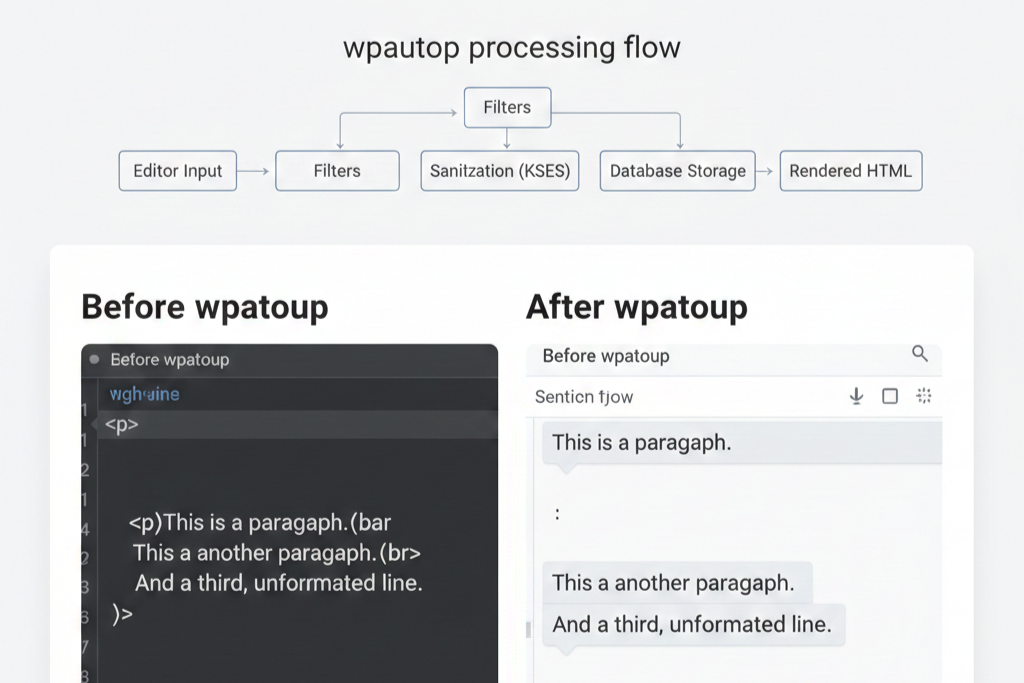
The WordPress Content Flow
When you add content to WordPress, here’s what actually happens:
- You type in the editor (Visual or Code).
- WordPress processes your input through filters.
- It sanitizes the content for security (HTML in WordPress security filter, KSES).
- It stores the processed content in the database.
- When someone visits your page, WordPress retrieves and renders it as HTML.
Understanding this flow is crucial because it explains why WordPress sometimes strips your HTML in WordPress code or adds extra formatting. It’s not being difficult—it’s trying to protect your site from malicious code.
The Gutenberg Custom HTML Block: Your New Best Friend
Alright, let’s talk about the game-changer that arrived with WordPress 5.0: the Custom HTML Block in WordPress.
If you’re still using the old Classic Editor (no judgment—some people love it), you might not have experienced the sheer joy of Gutenberg blocks. But trust me, the Custom HTML Block in WordPress is worth the upgrade alone.
The WordPress Custom HTML Block is basically a free pass to insert whatever HTML in WordPress you want without WordPress messing with it. No auto-formatting, no stripped tags (well, mostly), no unexpected paragraph breaks. It’s like WordPress saying, “Okay, you know what you’re doing—have at it.”
Real-World Example: Adding a Custom Contact Form
Let’s say you’ve got a specific HTML form in WordPress structure from your CRM that you need to embed. Here’s how you’d use HTML in WordPress with the Custom HTML block:
HTML
<div class="custom-contact-form">
  <form action="your-form-processor.php" method="post">
    <input type="text" name="name" placeholder="Your Name" required>
    <input type="email" name="email" placeholder="Your Email" required>
    <textarea name="message" placeholder="Your Message"></textarea>
    <button type="submit">Send Message</button>
  </form>
</div>
Just drop that into a Custom HTML Block in WordPress, and it renders exactly as written. No WordPress interference, no stripped attributes.
How to Add Custom HTML Code to a WordPress Post or Page (5 Proven Methods)
Now we’re getting into the good stuff—the actual techniques for inserting HTML in WordPress. I’m going to give you five different methods, ranked from easiest to most advanced.
| Method | Best For | Technical Difficulty | Key Advantage |
| 1. The Custom HTML Block | Individual custom elements, embedded widgets | Easy | Bypasses auto-formatting; native to Gutenberg. |
| 2. The Classic Editor Text Tab | Users comfortable with HTML, full post structure review | Medium | Sees the raw HTML of the entire post structure. |
| 3. Shortcodes (via Code Snippets Plugin) | Reusable HTML in WordPress snippets, non-technical teams | Medium | Insert complex code anywhere with a simple tag. |
| 4. Page Builder HTML Widget | Visual designers, complex page layouts (e.g., Elementor) | Easy | Drag-and-drop visual placement. |
| 5. Direct Template Editing (Child Theme) | Permanent site-wide changes, custom post type layouts | Hard | Ultimate control over HTML in WordPress theme structure. |
Which Method Should You Choose?
Here’s my honest recommendation: Start with the Custom HTML Block in WordPress. It handles 80% of use cases and doesn’t require any coding knowledge beyond HTML itself. As you get more comfortable with HTML in WordPress, you can graduate to more advanced methods.
[Image showing comparison table of all 5 methods]
Why WordPress Keeps Stripping Your HTML Tags (And How to Fix It)
This is probably the most frustrating issue people face with HTML in WordPress: you paste perfectly valid HTML, hit save, and—poof—half your tags are gone. Your <iframe> disappeared. Your <script> vanished. What gives?
Meet KSES: WordPress has a built-in security filter called KSES that automatically strips potentially dangerous HTML in WordPress tags (like <script>, <object>, <embed>) to prevent malicious code injection. It’s an essential defense mechanism.
Why Is WordPress Stripping or Removing My HTML Tags Like <iframe> and <script>?
It’s a security feature! Tags like <iframe>, <script>, and <object> are filtered to prevent malicious code injection. To prevent your WordPress HTML tag stripped issues:
- Solution 1 (Easiest): Use the Custom HTML Block in WordPress while logged in as an Administrator.
- Solution 2 (Advanced): Use a dedicated plugin like WPCode to insert scripts safely outside the content filter.
- Solution 3 (Developer): Modify the allowed tags using filters in your child theme’s
functions.php. For example, to allow iframe in WordPress HTML block for administrators, you can use PHP filters carefully.
Visual Editor vs HTML in WordPress Editor: The Battle You Didn’t Know You Were Fighting
Understanding the difference between the Visual Editor and the WordPress HTML Editor is crucial for mastering HTML in WordPress.
- Visual Editor (WYSIWYG): What You See Is What You Get. User-friendly, but can add unwanted formatting (like extra
<p>tags) to your custom HTML in WordPress. - HTML/Code Editor: Shows the raw HTML in WordPress markup. Essential for fixing formatting issues and achieving Edit HTML in WordPress precision.
Preventing WordPress from Auto-Adding Paragraph and Break Tags
This is all about wpautop, the function that automatically adds <p> (paragraph) and <br> (break) tags. It’s helpful for simple text but breaks custom HTML in WordPress layouts.
- The Fix: Use the Custom HTML Block in WordPress. This block bypasses the
wpautopfilter entirely, preserving your code exactly as you wrote it.
[Image showing side-by-side comparison of Visual vs HTML editor]
Inserting HTML in WordPress Headers and Footers (The Right Way)
How can I safely insert HTML, CSS, and JavaScript into the <head> or <footer> of my WordPress site?
You need to add custom HTML to WordPress header and footer for tracking pixels, analytics, custom fonts, or site-wide scripts. Do this safely!
- The Recommended Tool (Easiest): Use a dedicated code snippet plugin like WPCode (formerly Insert Headers and Footers) or Header Footer Code Manager. This keeps code separate from your theme and ensures it survives updates.
- The Developer Method (Advanced): Use the
wp_headorwp_footeraction hooks in your child theme’sfunctions.php.
Why not edit theme files? Never edit your main theme’s header.php or footer.php directly! When the theme updates, all your custom HTML in WordPress changes vanish.
HTML in WordPress Beyond the Content: Tables and Widgets
How Do I Insert a Raw HTML Table Into My WordPress Post?
Tables are tricky on mobile devices.
- Method: Paste your HTML table in WordPress post code directly into a Custom HTML Block in WordPress.
- Pro Tip: Always wrap your table in a responsive
<div>container to prevent mobile scrolling issues:HTML<div class="table-responsive"> <table> </table> </div>
Can I Use Custom HTML Within WordPress Widgets (e.g., in the Sidebar)?
Yes! WordPress provides a native way to inject HTML in WordPress sidebar widget areas.
- Method: Use the Custom HTML Widget/Block. Go to Appearance → Widgets and drag the Custom HTML block into your sidebar or footer. This is perfect for custom call-to-action boxes or simple signup forms.
HTML in WordPress Advanced Topic: Theme File Structure
How can I edit the HTML structure of my WordPress theme files?
This is the key to deep customization.
- Always Use a Child Theme: Copy the parent theme file (e.g.,
header.php) into your child theme directory. Modify the copy. This ensures theme updates don’t wipe your custom HTML in WordPress code. - Files to Target:
header.php: For the<head>section and top site elements.footer.php: For closing</body>tags and footer scripts.single.phporpage.php: For structural changes to posts and pages.
The 10 Best Plugins for Managing HTML in WordPress (2025 Edition)
These tools make working with HTML in WordPress easier, safer, and faster.
| No. | Product Name | Type | Key Feature Relevant to HTML in WordPress | Best For |
| 1 | WPCode | Plugin | Best overall WordPress Code Snippets manager for header/footer injection. | All Users |
| 2 | Code Snippets | Plugin | Lightweight manager for reusable WordPress Custom HTML blocks. | Developers |
| 3 | Elementor Pro | Page Builder | Dedicated HTML Widget with live preview and visual placement. | Visual Designers |
| 4 | Divi Builder | Page Builder | Code Module for custom CSS/JS/HTML within a drag-and-drop interface. | Agencies |
| 5 | Header Footer Code Manager | Plugin | Simple tool to add custom HTML to WordPress header and footer. | Non-Developers |
| 6 | Advanced Custom Fields (ACF) | Plugin | Wysiwyg Field and Code Field for storing dynamic HTML in WordPress. | Developers |
| 7 | Shortcoder | Plugin | Creates simple shortcodes for reusable HTML in WordPress content snippets. | Content Teams |
| 8 | Child Theme Configurator | Plugin | Safely creates the necessary files to edit HTML of WordPress theme file. | Intermediate Users |
| 9 | Gutenberg Custom HTML Block | Core Feature | The native block for embedding raw, un-processed HTML in WordPress. | All Users |
| 10 | WPForms / Forminator | Form Builder | Generates clean form HTML without manual coding. | Business Owners |
Why Professional WordPress Development from Vision.pk Changes Everything
Look, I’ve given you a ton of information about HTML in WordPress. You could absolutely implement everything I’ve shared and build a fantastic website.
But here’s what I’ve learned after years in this industry: knowing how to do something and actually doing it right are two very different things.
The Real Cost of DIY WordPress Development
When you’re a factory owner, a businessman, or an entrepreneur—do you really have time to troubleshoot why your custom HTML in WordPress isn’t rendering correctly at 11 PM?
- Time Loss: Debugging custom HTML in WordPress can cost weeks of lost business.
- Security Risk: Unsanitized custom code leads to hacks and data breaches.
- Scalability Block: Improperly structured HTML in WordPress cannot handle business growth.
What Vision.pk Actually Does Differently
We’re not just another WordPress development agency. We’re specialists in creating HTML in WordPress solutions that are Security-First, Performance-Optimized, and Future-Proof.
- We handle the custom HTML in WordPress structural edits using child themes.
- We ensure your HTML in WordPress is semantically correct for better SEO.
- We audit every custom code snippet for security vulnerabilities.
The Ultimate Business Strategy: Your time is better spent focusing on your core business—sales, production, strategy. Let the developers at Vision.pk handle the HTML in WordPress.
Stop Wasting Time on Code. Start Scaling Your Business.
My personal invitation to you: Ready to see how clean, professional HTML in WordPress development can make your website faster, safer, and infinitely more powerful?
We are the WordPress development team that ensures your digital foundation is unshakable.
Summary: Your HTML in WordPress Roadmap
We’ve covered a lot of ground here—from the basics of HTML in WordPress to advanced theme customization.
| Key Takeaway | Action Item |
| Security First | Use the Custom HTML Block in WordPress and dedicated snippet plugins (WPCode). |
| Avoid Deletion | Never edit your main theme files; use a Child Theme for structural changes. |
| Fix Formatting | Use the Custom HTML Block in WordPress to bypass the wpautop filter. |
| Know Your Editor | Use the Visual Editor for text, and the WordPress HTML Editor for code control. |
Ready to take your WordPress site to the next level?
Click here to contact the Vision.pk WordPress development team today for a free consultation. Tell us exactly what custom HTML in WordPress functionality you need, and we’ll show you the elegant, efficient solution. Don’t just manage HTML in WordPress. Master it with Vision.pk.
Frequently Asked Questions About HTML in WordPress
Let me address the most common questions I get about working with HTML in WordPress.
How do I add custom HTML code to a WordPress post or page?
The easiest method is using the Custom HTML Block in WordPress. In the Gutenberg editor, click the “+” button, search for “Custom HTML,” and paste your code directly. This bypasses most auto-formatting.
How can I safely insert HTML, CSS, and JavaScript into the <head> or <footer> of my WordPress site?
Use a dedicated code snippet plugin like WPCode. It provides a safe interface for adding code without editing theme files directly, ensuring your HTML in WordPress remains secure and survives updates.
Why is WordPress stripping or removing my HTML tags like <iframe> and <script>?
WordPress uses the KSES security filter to prevent XSS (Cross-Site Scripting) attacks. Tags like <iframe>, <script>, and <object> are filtered to prevent malicious code injection. Use the Custom HTML Block in WordPress as an Administrator to minimize this issue.
What is the difference between the Visual Editor and the Code/HTML Editor in WordPress?
The Visual Editor is WYSIWYG (What You See Is What You Get). The Code/HTML Editor shows the raw HTML in WordPress markup, giving you complete control over the code structure. Use the Code Editor for precise Edit HTML in WordPress control.
How do I insert a raw HTML table into my WordPress post?
Paste your HTML table in WordPress post code directly into a Custom HTML Block in WordPress. For responsiveness, wrap the table in a container with overflow CSS.
Can I use custom HTML within WordPress widgets in the sidebar?
Yes, use the native Custom HTML Widget/Block found in Appearance → Widgets. This is perfect for adding custom call-to-action boxes or third-party widgets using HTML in WordPress sidebar widget areas.
How do I prevent WordPress from automatically adding <p> tags and <br> tags to my custom HTML?
WordPress’s wpautop function causes this. The simplest solution is to use the Custom HTML Block in WordPress, which is designed to bypass wpautop filtering entirely.
What HTML tags are allowed by default in WordPress comments?
WordPress allows a limited set of basic formatting tags for security reasons: <a>, <b>, <strong>, <em>, <i>, <code>, <blockquote>, <cite>, etc. Script tags and iframes are blocked to prevent spam and XSS attacks.
How can I edit the HTML structure of my WordPress theme files?
Always create a child theme first. Then, copy the parent theme template file (like header.php or footer.php) into your child theme and modify it. This is the only safe way to edit HTML in WordPress theme structure.
What is the Gutenberg Custom HTML block and how does it work?
It is a dedicated block in the modern editor that accepts and renders raw HTML in WordPress code without applying automatic formatting or extensive filtering, making it ideal for embedding third-party code.